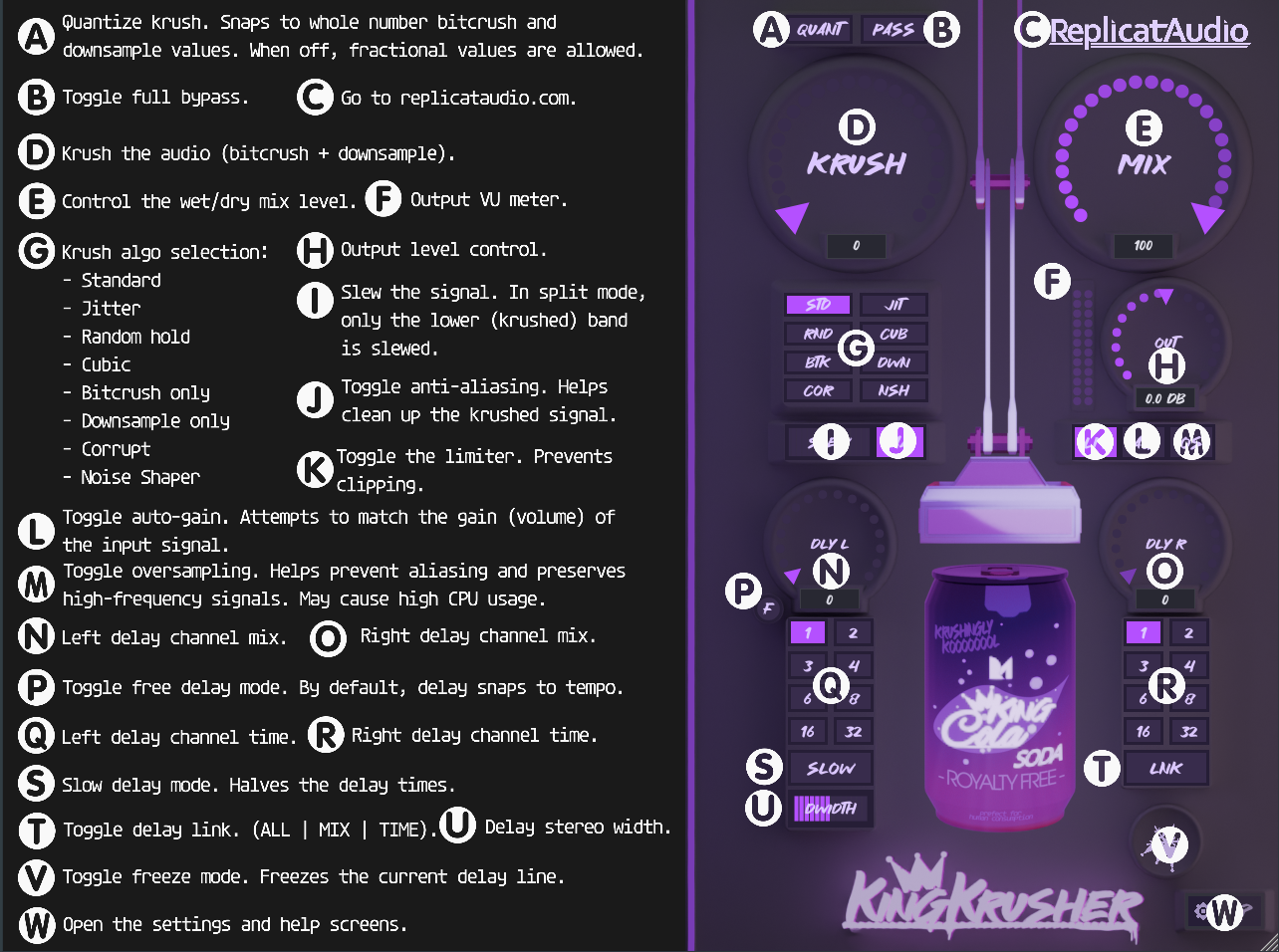
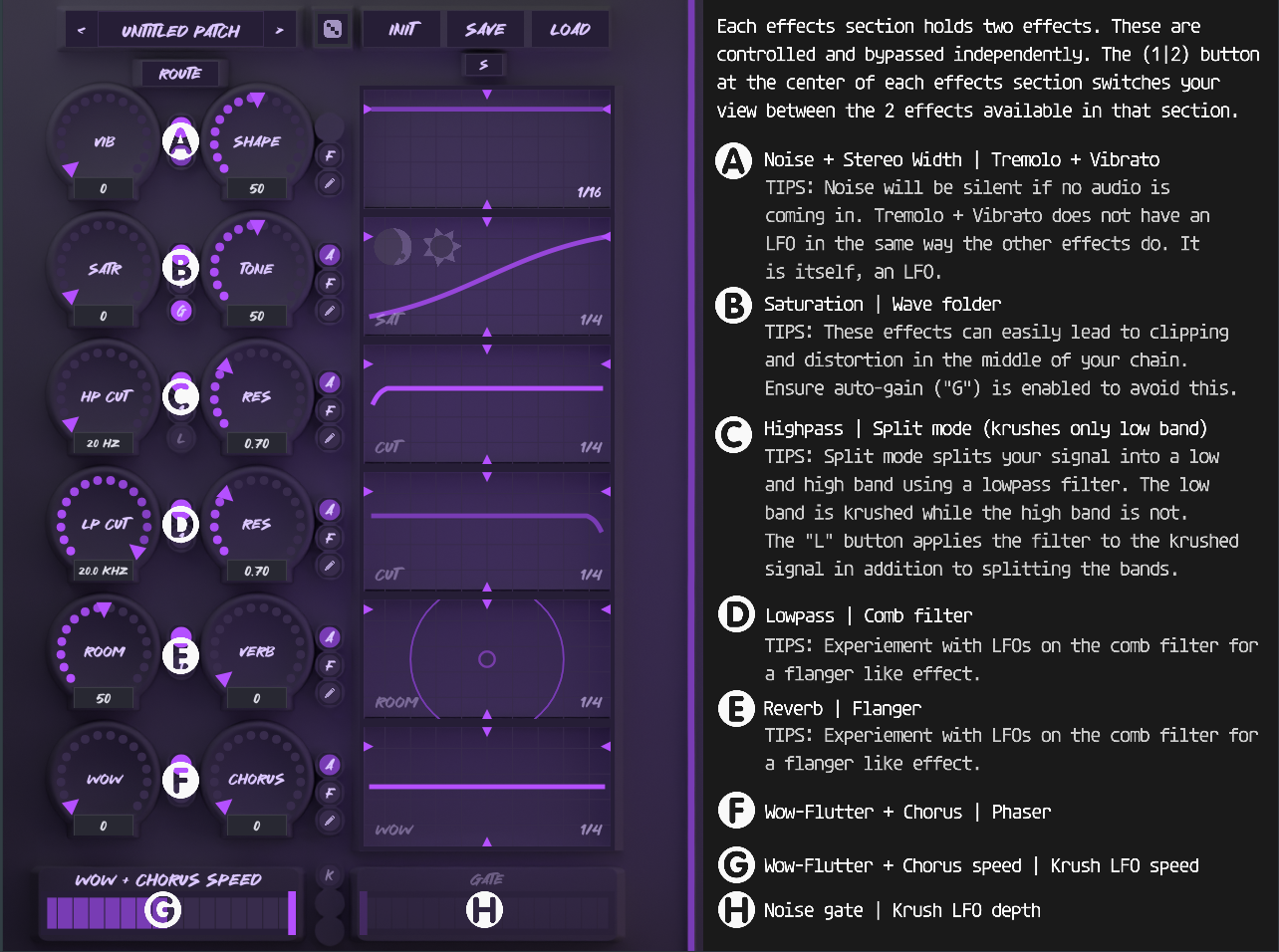
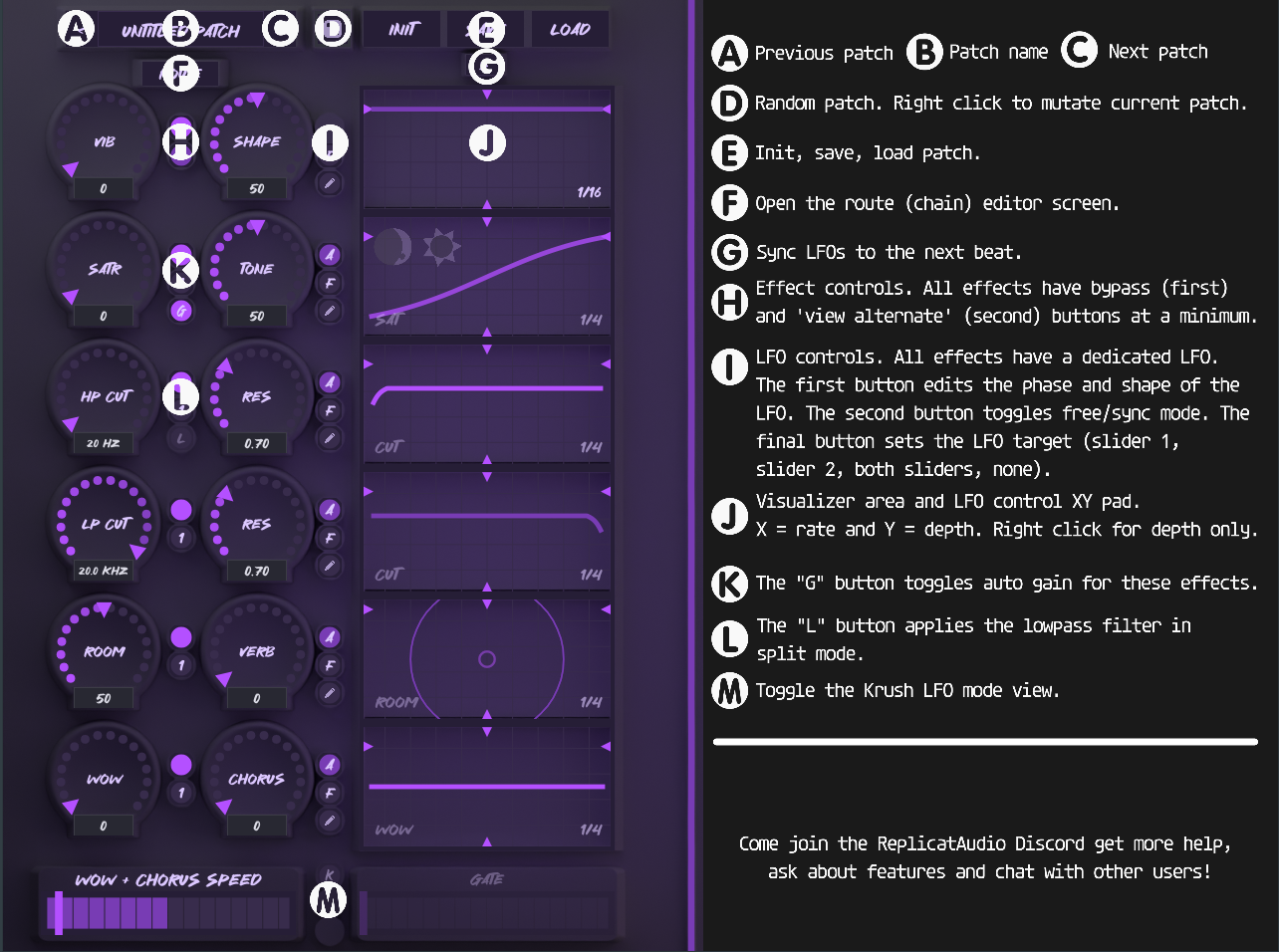
The screenshots below are from the in-plugin help overlay, which you can
open at any time by clicking the ? button.
Right Section
Left Section A
Left Section B
Basic Usage
Load KingKrusher in your DAW like any other VST3/AU plugin.
Use the Patch Name field and the Save/Load/Rand/Init buttons to manage
presets.
Adjust parameters with the rotary knobs and toggle buttons in the
three-column layout.
Click ? for an in-plugin reference overlay.
Features
Bitcrushing & Sample Rate Reduction: Eight algorithms
with anti-aliasing and soft quantization.
Frequency-Split Crush Mode: Split the signal at a
tunable crossover and crush only the low band while the highs pass
clean.
Multi-Mode Filtering: High-pass and low-pass filters
with variable cutoff and resonance, plus live response graphs.
Saturation & Wave Folding: Asymmetric tape-style
drive with tilt EQ, switchable to triangle-wave folding with variable
fold amount and symmetry.
Feedback Comb Filter: Comb filter with LFO-modulated
frequency and feedback.
Flanger: Animated delay-line modulation with its own
LFO.
Phaser: Phase shifting with LFO modulation.
Tremolo & Vibrato: Beat-synced tremolo with variable
depth and shape, plus pitch vibrato.
Modulation Effects: Wow+Flutter and Chorus for
tape-style and ensemble movement.
Delay & Reverb: Stereo tempo-synced delay and
algorithmic reverb.
Noise and Stereo Width: Blend in white noise and
control stereo width.
Noise Gate: Threshold-based gate for automated signal
ducking.
Slew Limiting: Soften staircase artifacts from
sample-rate reduction.
Oversampling: 2× oversampling for cleaner sound.
Routing: 15 configurable signal chain orders with a
drag-and-drop chain editor.
Per-Effect LFOs: Each major effect has a dedicated
LFO with rate, depth, mode, free-rate, phase, and shape controls.
Auto Gain: Automatic level compensation for
saturation and wave folding.
Presets: Save, load, initialize, and randomize
patches from the UI. Randomization never touches Output, Auto Gain,
Limiter, Oversample, Bypass, Krush Mute, or Freeze — those stay as you
set them.
Resizable UI: 4:3 aspect ratio (640×480 minimum,
2560×1920 maximum); the interface scales cleanly at any size.
KingKrusher features a
drag-and-drop 15-block signal chain. Click the
ROUTE button to open the chain overlay, then drag any
block to a new position. Each block can also be muted individually.
Label
Block
Description
O
Wow+Chorus
Tape wow+flutter and stereo chorus
T
Tremolo
LFO amplitude tremolo + pitch vibrato
N
Noise+Mono
White noise blend and stereo width
S
Saturation
Asymmetric drive + tilt EQ
W
Wave Fold
Triangle-wave folder with symmetry
H
Highpass
HP filter
L
Lowpass
LP filter
C
Comb
Feedback comb filter
V
Reverb
Algorithmic reverb
F
Flanger
Animated flanger (sine-wave delay modulation)
G
Gate
Threshold-based noise gate
K
Krush+Split
Bit depth, sample rate reduction, slew, frequency-split
D
Delay
Stereo tempo-synced delay
A
Phaser
Phase shifter
Z
Freeze
Loop capture at chain position; pan follows delay width
Position matters
Putting effects before Krush means their output gets
bitcrushed. For example, placing Saturation before Krush lets the drive
harmonics get degraded by the reduction.
Putting effects after Krush means they process the
already-crushed signal. Reverb placed after Krush smears the digital
artifacts; placed before, the reverb tail gets crushed too.
The Split block has its own special interaction with
chain position — see Frequency-Split Crush Mode.
Krush
The main control: a single knob that reduces bit depth and sample rate
together.
Krush: 0.0 – 1.0
0.0 — full 16-bit quality, no sample rate reduction.
1.0 — 3-bit depth, 32× sample rate reduction.
Bitcrush Algorithm
Eight algorithms control how quantization and downsampling are
performed. Select one with the button grid below the Krush knob.
All algorithms that downsample include an anti-aliasing filter (toggle
with the AA button) before downsampling, and all use
smooth, gradual transitions between levels rather than hard steps.
Button
Name
Description
STD
Standard
Classic sample-and-hold bitcrush with smooth rounding.
JIT
Jitter
Sample-and-hold with timing jitter on the sample clock.
RND
Random Hold
Randomly holds one of the last four captured values.
CUB
Cubic
Smoothly interpolates between captured samples — the smoothest of
the eight.
BTK
Bitcrush Only
Quantization only, no downsampling.
DWN
Downsample Only
Downsampling only, no quantization.
COR
Corrupt
Bitcrush with bit masking for extra grit.
NSH
Noise Shaped
Shapes the quantization noise for a warmer, less harsh crunch.
Anti-Aliasing (AA)
A low-pass filter applied before downsampling. When On,
a gentle filter at about 45% of the target sample rate removes
frequencies that would otherwise alias. When Off, full
aliasing is allowed for an aggressive crunch.
Quant
Snaps the effective bit depth and downsample factor to whole numbers.
Krush LFO
Modulates the krush amount. It has rate (beat-synced or free), depth,
phase offset, and shape (sine/saw/triangle/square), plus a free-rate
toggle. The Krush LFO has a single target: the krush amount itself.
Slew
Slew rate limiting, applied after downsampling to soften the staircase
edges of sample-rate reduction.
Slew: 0.0 – 1.0. Blends between the dry signal and
the smoothed version — 0.0 = no smoothing, 1.0 = fully smoothed.
Oversampling
Oversampling: On/Off (2×). When enabled, the
saturation and bitcrush stages are processed at twice the session
sample rate, which reduces aliasing when you push them hard.
LP Res: 0.1 – 2.0 (default 0.7). Resonance at the
cutoff; above 1.0 it produces resonant bumps.
LP LFO: Modulates cutoff, resonance, or both.
Frequency-Split Crush Mode
Split mode splits the signal at a tunable crossover, crushes only the
low band, and recombines it with the original clean highs.
How it works
The signal is split at the Split Cut crossover using a low-pass
filter.
The low band is bitcrushed with the full eight-algorithm pipeline.
An optional low-pass on the crushed low band (Split Filter) shapes it
further.
The crushed low band is recombined with the clean highs.
Split vs. Krush
Split and Krush are mutually exclusive. When Split is active, Krush+Slew
is automatically muted. When Split is bypassed, Krush+Slew handles
full-range crushing.
Controls
Split Cut / Split Res: Replace the HP Cut/Res knobs
in split mode. Independent parameters.
Split Filter: An extra low-pass on the crushed low
band only.
Split LFO: Modulates cutoff, resonance, or both.
Saturation
Asymmetric tape-style drive.
Drive: 0.0 – 1.0 (1× – 24× gain into asymmetric soft
clipping). Adds even harmonics.
Comb LFO: Modulates the comb frequency (mode 0),
feedback (mode 1), or both (mode 2). Mode 3 bypasses the LFO.
Visualizer: Shows the comb filter's frequency
response for the current settings. When the LFO modulates feedback,
ghost curves show the modulation range.
Flanger
An animated flanger driven by delay-line modulation.
Depth: 0.0 – 1.0. Modulation depth of the delay line.
Also controls the wet/dry mix — 0.0 = dry only, so at zero depth the
flanger is silent.
Rate: 0.01 – 20 Hz. Sweep rate.
Flanger LFO: Modulates depth (mode 0), rate (mode 1),
or both (mode 2). Mode 3 bypasses the LFO.
Visualizer: Animated sine waves whose spread
oscillates with the sweep — a live view of the delay-line modulation.
Phaser
Phase shifting with LFO modulation.
Depth: 0.0 – 1.0. Modulation depth.
Rate: 0.01 – 20 Hz. Sweep rate.
Phaser LFO: Modulates depth (mode 0), rate (mode 1),
or both (mode 2). Mode 3 bypasses the LFO.
Noise Gate
A threshold-based noise gate.
Gate: 0.0 – 1.0. Threshold from -40 dB to 0 dB. At
0.0 the gate is off (always open). Attack and release are fixed, with
smooth gain transitions.
The rate indexes map to beat subdivisions: 16 bars, 8 bars, 6 bars, 4
bars, 2 bars, 1 bar, 3/4, 1/2, 1/4, 1/8, 1/12, 1/16, 1/20, 1/24, 1/32,
1/64, 1/128.
Effects with LFO modulation:
Krush LFO — krush amount (single target)
HP LFO — cutoff / resonance
LP LFO — cutoff / resonance
Split LFO — split cutoff / resonance
Sat/WF LFO — drive/fold / tone/symmetry
WF LFO — fold / symmetry
Noise LFO — noise / width
Wow LFO — wow / chorus
Comb LFO — comb frequency / feedback
Flanger LFO — flanger depth / rate
Phaser LFO — phaser depth / rate
Reverb LFO — size / mix
Output
Auto Gain: Compares the dry and processed levels
after crushing and adjusts automatically.
Mix: 0.0 – 1.0. Final dry/wet blend. At 0.0 the dry
signal passes through unchanged.
Output Limiter: Gain-reduction limiter with fast
attack and slow release. Signals below the threshold pass clean; peaks
above it are smoothly gain-reduced.
Bypass: Full plugin bypass. The oscilloscope keeps
running.
Patch Management
Patch Name: Text field at the top left; saved with
the patch.
Save: Saves the current state to a
.king file.
Load: Loads a previously saved
.king file.
Rand: Randomizes all parameters.
Init (X): Resets all parameters to defaults.
Patch & Settings Locations
Patches and settings are stored in platform-standard directories: